17. Printing Reports in MediaLibrary 3.5.x Shop
In this article we will look at the option to print reports in Media Manager in MediaLibrary 3.5.x Shop.
Print Reports option in Medias Manager
In the Admin panel go to Components -> MediaLibrary -> Media
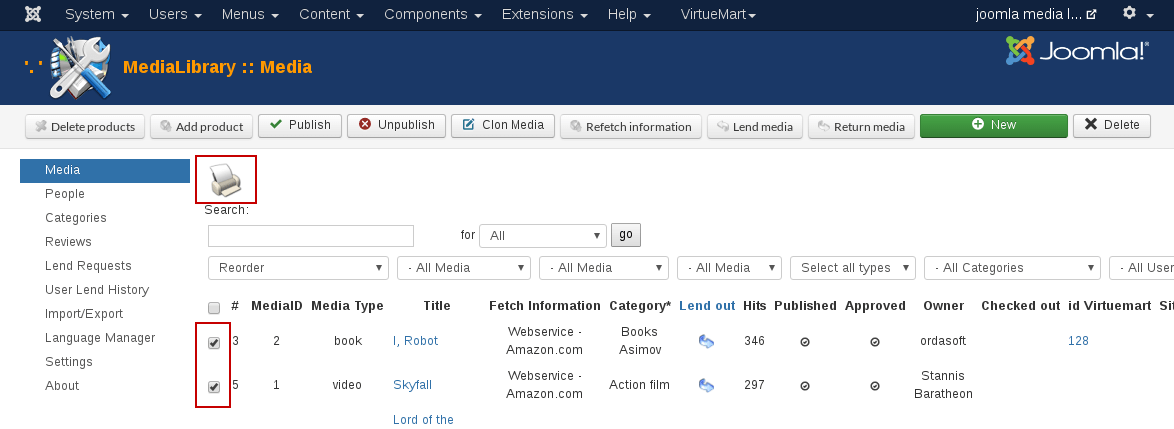
In the Media Manager select one or multiple Medias (checkmarks in front of the titles) which you want to print a report from. Then click the [Print] button on the top right.
You will see the following screen:
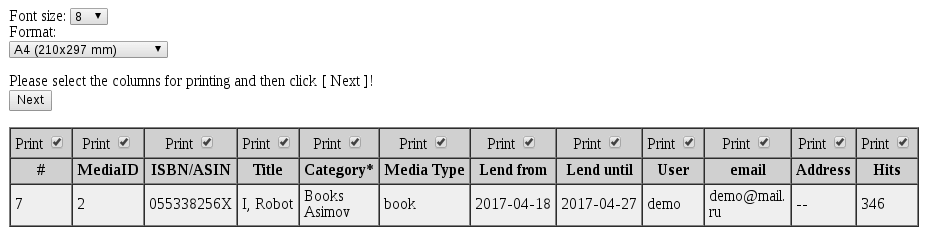
- Font Size. Select the font size you want with the dropdown box.
- Format. Select the paper format you want with the dropdown box.
- Print checkboxes. Select the columns you want to include in the Report print-out. When you have selected all the details you want, click the [Next] button.
[Print]. By clicking the [Print] button again, your printer selection screen will come up. You can print to a physical printer or to a PDF creator if you have that installed.
we support payment systems